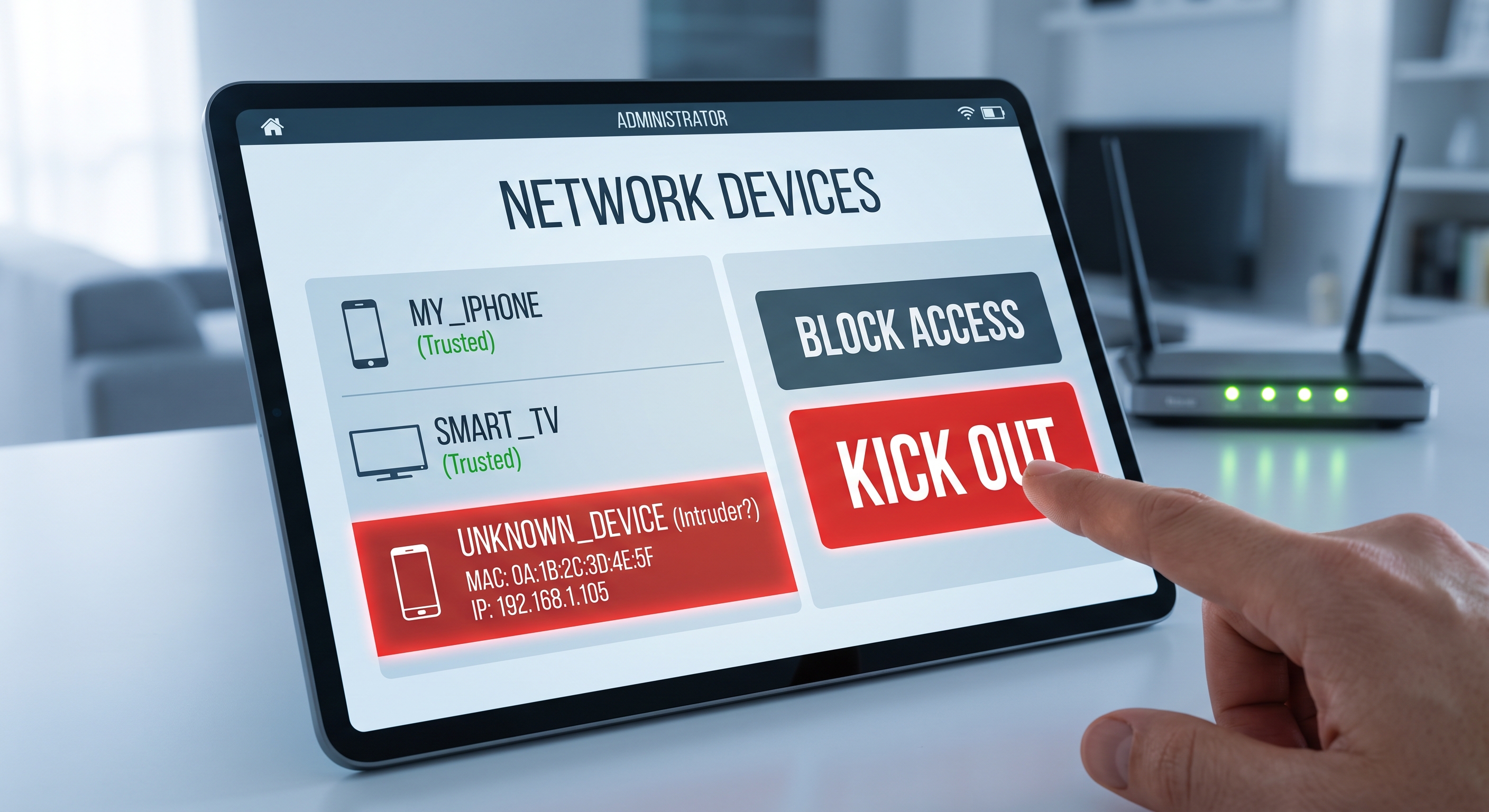
If your connection is slower than usual, you see devices with strange names in your router’s app, or you simply suspect that a neighbor is “stealing” your Wi-Fi, the first thing to do is verify it with actual data. In this guide, you’ll learn how to list all the devices connected to your network, how to identify which ones aren’t yours, and how to kick them off for good.
Signs That Someone Is Using Your Wi-Fi
None of these signs is proof on its own, but if several of them occur together, you should check your network:
- The speed drops, especially at certain times, even when no one at home is using the network.
- The router or access point flashes to indicate activity even when all your devices are turned off.
- Unknown devices appear in the router’s DHCP client list.
- You receive notifications about new logins or devices on services like Netflix or Google.
How to see which devices are connected
Option 1: Scan the network from your iPhone
This is the fastest method. A network analysis app like Net-Analyzer shows all active devices on your local network in seconds: IP address, MAC address, manufacturer, and name (when available). All you need to do is connect to your Wi-Fi and run a scan.
The advantage over checking the router is that the results are immediate and easy to read: you don’t have to decipher technical tables or remember admin passwords.
Option 2: From the router’s dashboard
- Open your browser and go to the router’s portal, usually
192.168.1.1or192.168.0.1(on an iPhone, you can find it under Settings → Wi-Fi → your network → “Router”). - Log in with the router’s username and password (these are usually printed on a sticker on the device).
- Look for the Connected Devices, DHCP Clients, or LAN section.
- Check the list: you’ll see the IP address, MAC address, and sometimes the name the device itself reports.
How to identify which device is which
The list usually mixes clear names (“Maria’s iPhone”) with cryptic entries. To identify them:
- Turn off devices one at a time. Start the scan, turn off one of your devices, and refresh the list: the one that disappears is the one you’re looking for.
- Check the manufacturer. The first half of the MAC address identifies the manufacturer (Apple, Samsung, Espressif for home automation, etc.). A MAC address from an unknown manufacturer at 3 a.m. is suspicious.
- Rule out the obvious. Smart TVs, smart plugs, light bulbs, game consoles, speakers, and repeaters all count as devices, and it’s easy to overlook them.
- Watch out for random MAC addresses. iPhones and Android devices use “private Wi-Fi addresses,” so the same phone may appear with different MAC addresses depending on the network or after updates.
Quick tip: If your router’s DHCP shows an IP address you don’t recognize, ping it or open http://IP in your browser. Many cameras, printers, and IoT gadgets respond with their own configuration webpage and give themselves away.
How to kick out an intruder, step by step
- Change your Wi-Fi password. This is the only measure that kicks out all intruders at once. Use WPA2-AES or WPA3 and a long passphrase; forget about WEP and WPA1, which can be cracked in minutes.
- Also change the router’s admin password. If the intruder got in once, they may already have it—or it could still be the factory default.
- Disable WPS. The quick-pairing button or PIN is a classic entry point for brute-force attacks on the PIN.
- Restart the router after making changes to terminate active sessions.
MAC filtering (whitelisting of allowed addresses) is available on almost all routers, but use it only as a supplement: a MAC address can be spoofed in seconds, so it’s no substitute for a strong password.
How to Prevent It From Happening Again
- Use a unique, long Wi-Fi password; never use the one printed on the router.
- Use WPA2-AES or WPA3 encryption; disable TKIP mixed mode if your router supports it.
- Set up a guest network for visitors and IoT devices, isolated from your main network.
- Keep your router’s firmware up to date; many intrusions exploit vulnerabilities that have already been patched.
- Check your device list from time to time: a scan with Net-Analyzer takes less than a minute.
Conclusion
Detecting an intruder on your Wi-Fi is a matter of minutes: scan the network, identify unknown devices by MAC address and manufacturer, and cut off access by changing the password using WPA2/WPA3 encryption. After that, a monthly check of connected devices is all you need to sleep soundly.