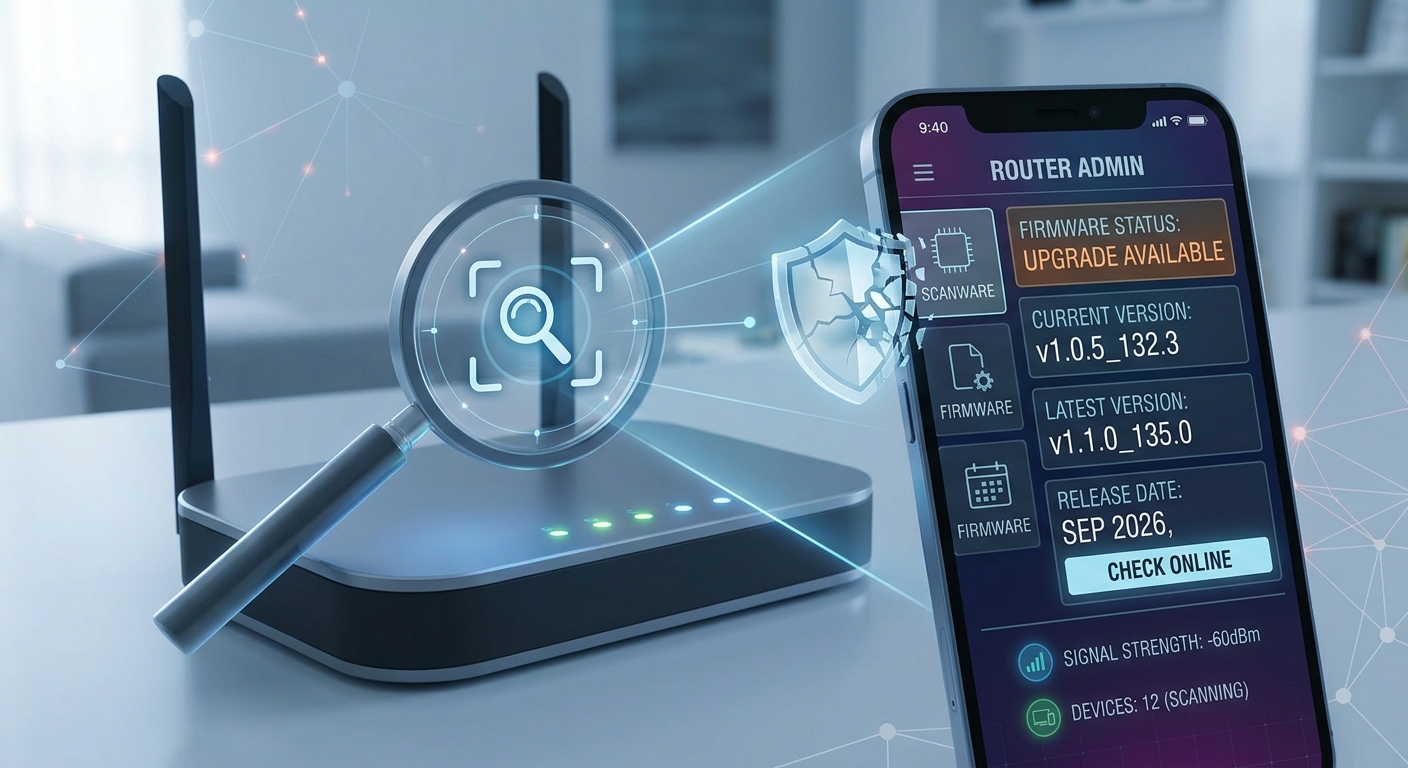
The security of your home network depends on more than just a strong password. Your router's firmware, which is the device's internal operating system, is a critical layer that can contain serious vulnerabilities if it's not kept up to date. Outdated firmware can expose you to remote attacks, backdoors, or significant slowdowns in your connection. Fortunately, checking whether your device is updated is a simple process that you can perform from your iPhone in under ten minutes.
Access the administration console
The first step is to access your router's web interface. Most devices from popular brands such as TP-Link, ASUS, Cisco, or Netgear use standard local IP addresses like 192.168.1.1 or 192.168.0.1. Open Safari on your iPhone and type that address into the address bar. If you're unsuccessful, check the label on the bottom of the router, which typically indicates the admin IP and default credentials.
Once inside, log in with the username and password you configured when you installed the router. If you never changed the factory default credentials (frequently admin/admin or user/user), that is a risk in itself, and you should change them immediately after this check.
Locate the version information
Menu structures vary by manufacturer, but the firmware information is usually found in one of these sections:
- Status: Typically on the main page or in the 'System Status' tab.
- Administration: Look for submenus such as 'Firmware Upgrade' or 'System Tools'. The current version and release date are usually displayed here.
- Maintenance: On older routers or those provided by ISPs, the option may be hidden here alongside 'Backup' or 'Restore'.
Look for a field indicating 'Firmware Version', 'Software Version', or 'Build Number'. Note this text string. For example, a version might look like v1.0.5_132.3. It's also important to record the last update date if the router displays it, as this helps you gauge how long it has been without patches.
Check for updates
Returning to the same firmware section, most modern routers include an option called 'Check Online', 'Update Now', or 'Buscar actualizaciones'. When you press this button, the device queries the manufacturer's remote servers to compare its current version with the latest available release.
- If it's up to date: A message will appear indicating that you have the latest version or that no updates were found. In this case, your current firmware is the most secure version publicly available.
- If it is outdated: You will see a newer version available with a date later than yours, and likely a list of changes (changelog) detailing removed security patches.
If your router does not have the option for automatic updates from the web (common in very old models or carrier-provided routers that block this feature), you will need to manually search for the software on the official support page of the brand using the exact model of your device and the serial numbers.
Complementary tools for iPhone
Firmware verification is the first line of defense, but continuous network monitoring is also vital. While managing the security of your router, you can leverage applications designed to audit your devices. For example, by using Net-Analyzer for networks/security/privacy, you can scan the local network to identify unknown devices that may have accessed your network when the firmware was vulnerable. This app allows you to detect intrusions and manage your data privacy, complementing hardware security with real-time software control from your mobile phone.
Secure update process
If you discover that the firmware is outdated, start the update process immediately. Here are golden rules to prevent your router from becoming unusable:
- Do not power off the router: The memory write process can take between 5 and 15 minutes. A power interruption can damage the hardware.
- Maintain a stable connection: If possible, perform the update with the router connected via an Ethernet cable, or ensure that the Wi-Fi signal is excellent.
- Restart after updating: Although the router usually restarts on its own, a manual restart ensures that the new operating system loads correctly.
- Verify the version: After restarting, repeat the verification process to confirm that the version number has changed to the new one.
It is recommended to repeat this check quarterly, as manufacturers frequently release critical patches in response to newly detected threats in the cybersecurity ecosystem.
Conclusion
Leaving your router firmware obsolete is like leaving the door to your house unlocked. Verification is a quick procedure that eliminates known vulnerabilities that attackers actively exploit. By dedicating a few minutes to review the version and apply available updates, you significantly improve the integrity of your Wi-Fi network. Combine this manual practice with scanning tools on your iPhone to maintain a proactive security posture and protect your personal data against external intrusions.