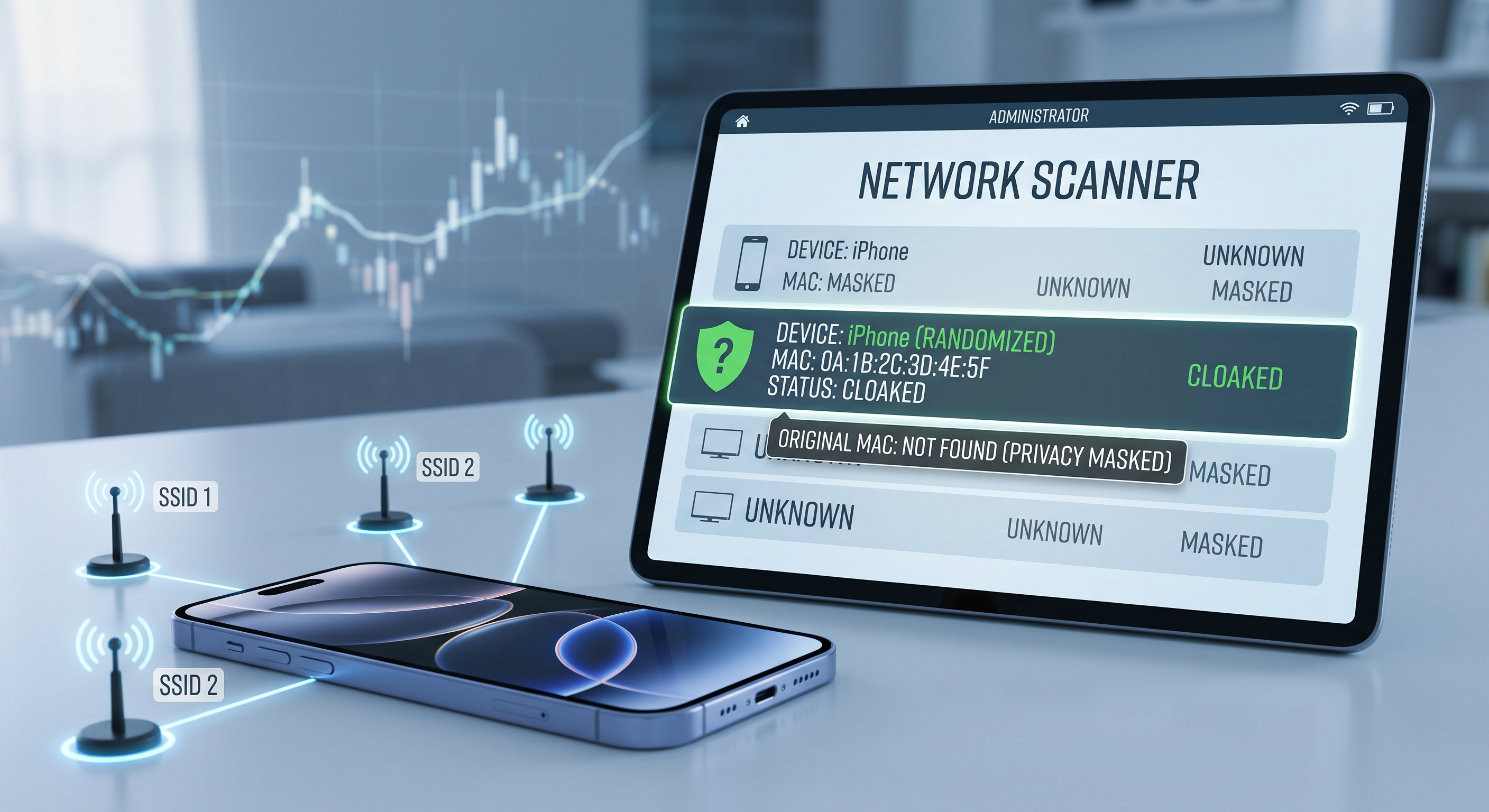
If you've scanned your network with Net-Analyzer, you may have noticed something unusual: your iPhone appears with a MAC address that doesn't start with Apple's usual prefixes and changes depending on the network. This isn't a bug—it's the Private Wi-Fi Address , a privacy feature Apple enabled by default in iOS 14.
What is a MAC address and why do they change it?
The MAC address is the unique physical identifier of each device's network card. For years, stores, airports, and public networks used it to track your phone between locations: they knew when you returned, how long you spent there, and could cross-reference that data with other profiles.
To prevent tracking, iOS generates a different MAC address for each Wi-Fi network . At home you have one identity, at the coffee shop another, and neither matches the actual MAC address of the hardware. Routers see a consistent device within each network, but no one can track you from one network to another.
What you'll see on a network scanner
Using Net-Analyzer or any scanner, an iPhone with a private address is identified as follows:
- Random MAC : usually starts with a byte with the "local" bit set (x2, x6, xA, xE in the first pair).
- Unknown vendor : The fake MAC address is not listed in the manufacturers' databases, so it may appear as "Unknown vendor".
- Generic name : "iPhone" without further ado, or the name you gave the device.
If you manage your own network, this explains why "the same iPhone" appeared with a different MAC address a few years ago.
When can it be annoying?
The feature is good for privacy, but there are scenarios where it causes problems:
- Router MAC filters : If your router only allows authorized MACs, you will need to register the private MAC address of that specific network.
- Parental controls per device : MAC rules stop working if the address changes — although iOS maintains the same private MAC address over the network, changing hardware or reinstalling can regenerate it.
- Captive portal networks : some hotels and airports get confused and ask for registration again.
- Identification in your inventory : if you list devices by MAC address, note the private address of each network.
How to view and disable it over the network
- Open Settings → Wi-Fi .
- Press the ⓘ next to your network.
- You'll see "Private Wi-Fi Address" with the MAC address it uses on that network, and the switch to turn it off if needed.
It is deactivated by network, not globally: at home you can turn it off for your router filters and leave it active on all public networks, which is where it really protects.
Conclusion
The private address is one of those silent protections that works on its own: it reduces MAC address tracking without you having to do anything. Only change it if your filters or device controls depend on a stable MAC address—and remember that after changing it, you'll have to reauthorize the device on the router.